Chapter 5: Body Measurement
Accurate body measurements are the foundation of quality sleep system recommendations. This chapter covers measurement techniques, using the Body Wizard, and integrating with Tatchi body scanning technology.
For an overview of how body measurements affect scoring, see Chapter 0: Introduction. For information on the user interface where measurements are entered, refer to Chapter 4: Main User Interface.
Why Measurements Matter | Body Score Confidence Indicator
SleepCoder's algorithm relies on precise body dimensions to calculate:
- Support Requirements - Where the body needs support versus pressure relief
- Pressure Distribution - How weight distributes across the mattress surface
- Spinal Alignment - Maintaining natural spine curvature in different sleeping positions
- Layer Thickness - How deeply the body sinks into materials based on weight and dimensions
Impact of Measurement Accuracy
The accuracy of body measurements is directly related to the accuracy of SleepCoder recommendations. The more accurate the body measurement, the more reliable the given advice. The 'certainty' of the current body measurements is shown in the Body Score Confidence Indicator on the right side of the SleepCoder logo (see Chapter 4: Main User Interface).
Confidence Level Scale:
- 95-100%: Excellent - High confidence in recommendations
- 75-94%: Good - Reliable recommendations with minor uncertainty
- 50-74%: Uncertain - Additional measurements recommended for accuracy
- Below 50%: Poor - Very low confidence; measurements required
💡 Tip: Always aim for a body score confidence of 75% or higher before finalizing recommendations.
Measurement Methods
SleepCoder supports two measurement methods. The method to be used can be configured in the User Settings tab (see Chapter 2: Startup, Updates, and User Settings).
1. Manual Body Wizard (Default)
- Guided input dialog with visual feedback
- Suitable for in-store measurements
- Requires measuring tape
- 5-10 minutes per client
2. Tatchi Integration (Optional)
- 3D body scanning
- Automatic measurement extraction
- High precision
- Requires Tatchi hardware
- 2-3 minutes per client
Starting Body Measurement
To begin measuring a client:
- Locate the body silhouette icon in the Client Input & Preferences Panel (left side of interface)
- Click the icon to launch the measurement interface
- The configured measurement method (Body Wizard or Tatchi) will appear
For interface details, see Chapter 4: Main User Interface.
Body Wizard Interface
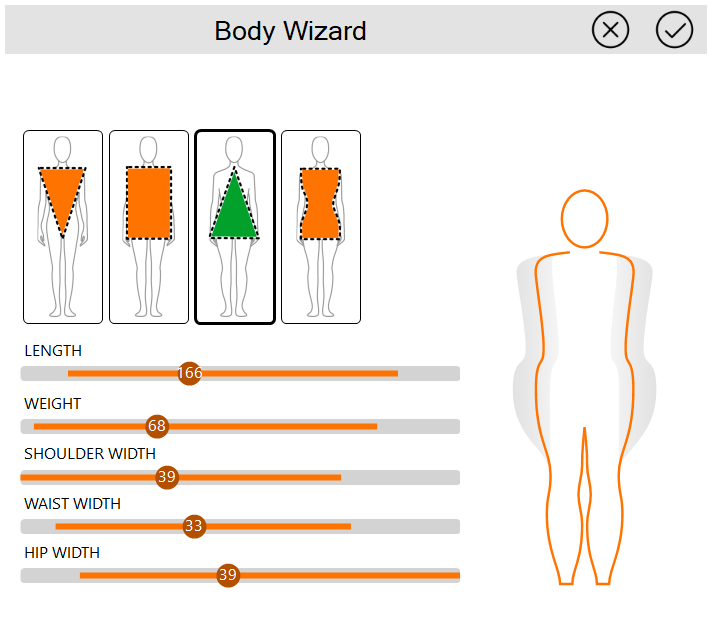
The Body Wizard has two main parts:
I. Body Shape Selection
Buttons indicate the general body shape of the client. Different body shapes are available: A-shape, Y-shape, H-shape, X-shape. Clicking on any shape button will adjust the range of the input sliders to realistic values for that body type.
II. Input Sliders
Use sliders to specify the client's body dimensions. For example, if the height or weight of the client is known, set the slider to the corresponding value. Sliders provide visual feedback and validation to ensure measurements are within realistic ranges.
Detailed Measurement Guide
1. Height (Length)
- Field: Length (cm)
- Range: 140-220 cm
- What to measure: Total height from floor to top of head
How to measure:
- Client stands barefoot against wall
- Mark top of head on wall
- Measure from floor to mark
- Enter in centimeters
💡 Tips:
- Remove shoes for accurate measurement
- Stand naturally, not stretched or on tiptoes
- Look straight ahead, not up or down
- Heels should be against the wall
2. Weight
- Field: Weight (kg)
- Range: 40-200 kg
- What to measure: Body weight
How to measure:
- Use calibrated scale
- Client in light clothing
- Measure in morning if possible
- Enter in kilograms
💡 Tips:
- Measure at the same time of day for consistency
- Preferably after bathroom use, before eating
- Remove heavy clothing and empty pockets
- Round to the nearest 0.5 kg for practical accuracy
3. Shoulder Width
- Field: Shoulder (cm)
- Range: 30-70 cm
- What to measure: Width from left to right shoulder at widest point
How to measure:
- Client stands naturally with arms held horizontal in front of the chest, hand palms touching
- Measure from left shoulder edge to right
- Measure the straight line, not across the back or front
- At widest point (usually shoulder blade level)
- Enter in centimeters
💡 Tips:
- Use a flexible measuring tape for accuracy
- Keep the tape horizontal, not angled
- Client should be relaxed, not flexing muscles
- Measure at shoulder blade level (not deltoid muscles)
4. Waist Width
- Field: Waist (cm)
- Range: 20-60 cm
- What to measure: Width at narrowest waist point
How to measure:
- Client stands naturally, relaxed stomach
- Locate narrowest point (usually at belly button)
- Measure from left side to right side
- Enter in centimeters
💡 Tips:
- Measure width only, not waist circumference!
- Client should breathe normally during measurement
- Measure at the thinnest point of the torso
⚠️ Important: This is WIDTH (side to side), not circumference (around the body).
5. Hip/Buttocks Width
- Field: Buttocks/Hip (cm)
- Range: 30-70 cm
- What to measure: Width at widest hip/buttocks point
How to measure:
- Client stands naturally
- Locate widest hip point (usually over buttocks)
- Measure from left side to right side
- Keep tape horizontal
- Enter in centimeters
💡 Tips:
- Measure at the widest point (usually over the glutes)
- Measure width only, not hip circumference!
- Hip width can be wider than shoulders (this is normal)
- Have client remove items from back pockets
Common Issues Causing Low Scores
Issue 1: Waist wider than shoulders
- Problem: Anatomically unusual (except pregnancy/medical conditions)
- Solution: Re-measure shoulder width (check not measuring arms)
Issue 2: Weight doesn't match dimensions
- Problem: 50kg client with 50cm shoulders
- Solution: Verify weight or shoulder measurement
Issue 3: Extreme heights without proportional dimensions
- Problem: 200cm tall but average shoulder/hip widths
- Solution: Re-measure all dimensions
Using Tatchi Body Scanner
The Tatchi Body Scanner allows for highly accurate measurement of the complete body profile. Widths are measured continuously along the entire length of the client's body, not just at discrete locations (shoulder, waist, hip). Additionally, heights are measured at various points. This enables accurate measurement of Torso Length, which better matches the zoning information of sleep systems. Back curvature is taken into account for back sleeping posture analysis.
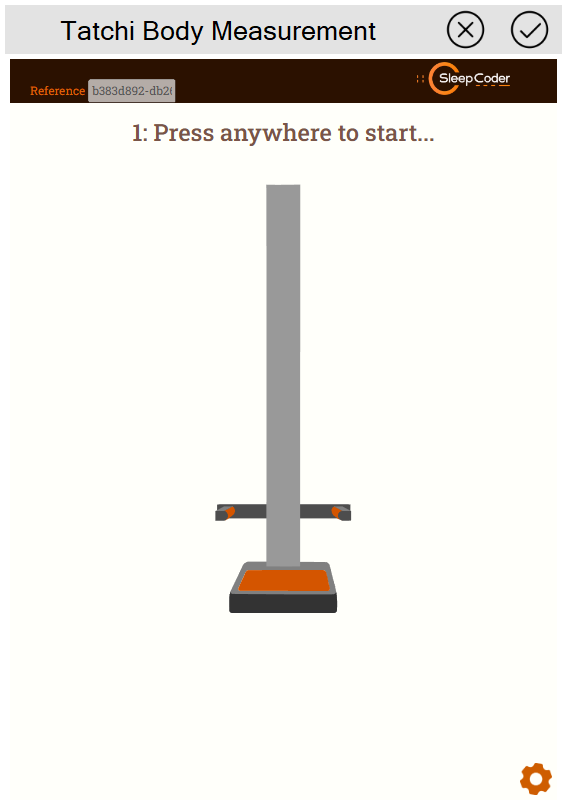
Tatchi Workflow | Scanning Clients in Two Positions
Step 1: Side profile
- Remove shoes and heavy clothing
- Stand on the scanner platform in the designated position
- Follow on-screen scanner instructions
- Hold arms horizontal in front of the chest with hand palms touching
- Relax and breathe normally
- Remain still during the scan (approximately 30 seconds)
Step 2: Back Profile
- Turn 90° clockwise from the previous position
- Hold hands down in front of the body
- Relax and remain still during the scan (approximately 30 seconds)
- Breathe normally throughout the scan
Step 3: Import to SleepCoder
After a successful scan, the body data is automatically imported into SleepCoder and displayed in the body edge profile visualization. Some derived measurements are shown in the interface, but the expert system uses 200+ data points from the measured profiles for comprehensive analysis.
The Body Score Confidence Indicator is automatically updated to reflect the high-quality measurements from the Tatchi scanner.
💡 Advantages of Tatchi:
- Extremely accurate measurements (200+ data points)
- Faster than manual measurement (2-3 minutes vs. 5-10 minutes)
- Consistent results across different consultants
- Clients perceive a high-tech, professional experience
- Achieves 100% body score confidence rating
- Eliminates human measurement errors
- Provides continuous body profile data for optimal recommendations
Tatchi Troubleshooting
Issue: Reference ID not working
- Verify scanner is online
- Check internet connection
- Ensure scan completed successfully
Issue: Measurements seem wrong
- Client may have moved during scan
- Scanner calibration may be needed
- Re-scan the client
- Can manually override values if needed
Communication Tips
What to Say:
- ✅ "We need these measurements to find the perfect sleep system for your body"
- ✅ "This helps us calculate exact support requirements for optimal comfort"
- ✅ "The more accurate these measurements are, the better our recommendations"
- ✅ "Let's measure your weight for the calculation" (not "step on the scale")
- ❌ Don't say: "We need to measure how wide you are"
- ❌ Don't say: "You're heavier/lighter than average"
For sensitive clients:
- Explain WHY each measurement matters
- Emphasize precision improves recommendations
- Offer privacy for weight measurement
- Be professional and matter-of-fact
- Don't comment on measurements
💡 Quick Tip: Practice measuring colleagues before working with clients. Consistency and speed improve with experience!
⚠️ Remember: Garbage in, garbage out. Accurate measurements are essential for quality recommendations. Always double-check unusual values before proceeding.
Next Steps: After completing body measurements, the interface automatically calculates recommendations. Learn about providing expert feedback in Chapter 6: Expert Review and Feedback, or return to Chapter 4: Main User Interface for information on other interface features.